Navigating the console
A tour of the OrkStage web console. How to sign in, what each role sees, the overview, instance tabs, deployments, incidents and the theme.
The console is a Next.js application served next to the API. It calls the API through its own origin, so session cookies stay first party and no cross origin requests are needed.
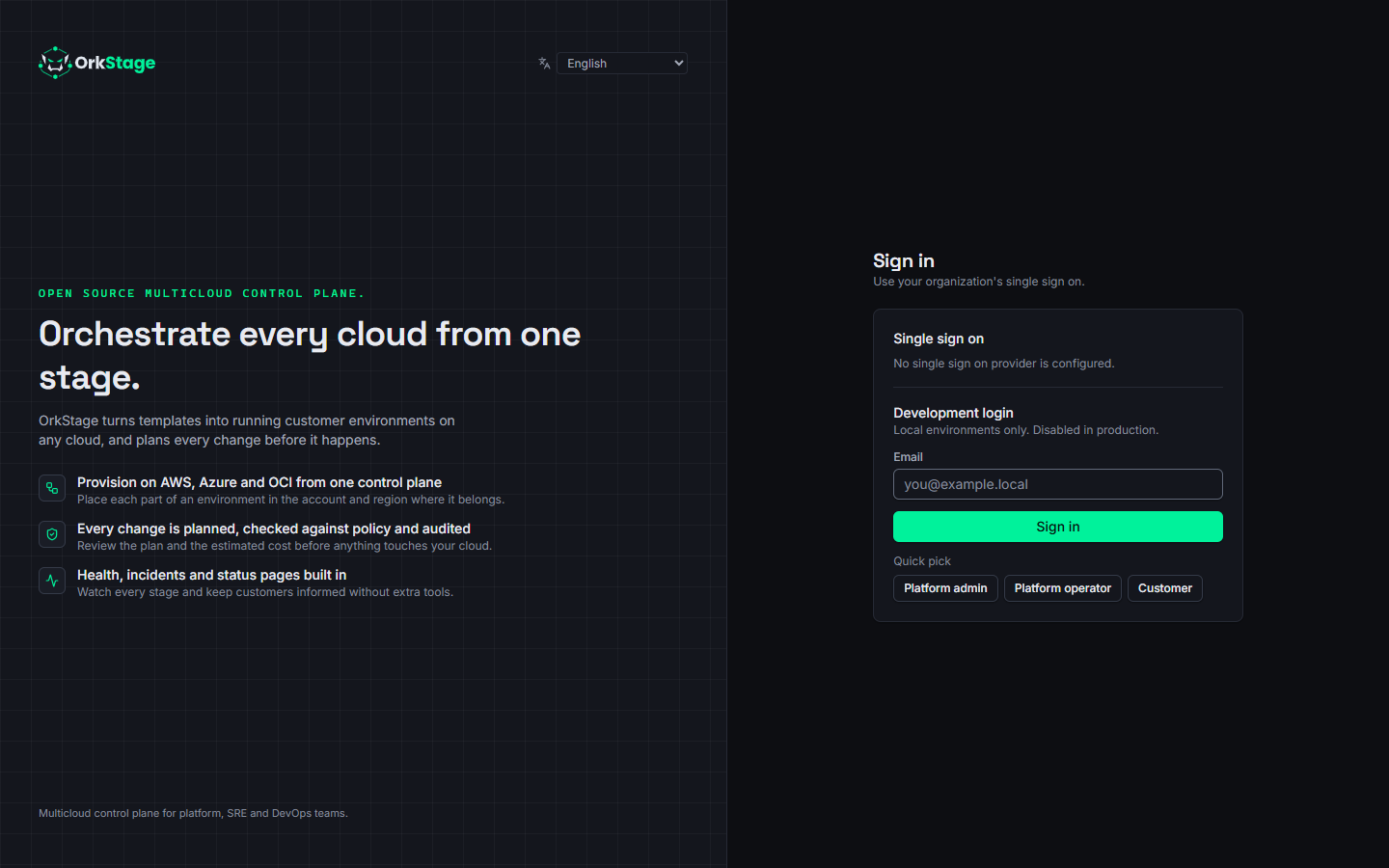
Signing in
- Single sign on: every provider configured with OIDC appears on the login page. Microsoft Entra ID is the reference provider, and you can add any other OIDC provider through configuration. See Configuration.
- Development login: an email only login for local installs. It is off unless
AUTH_DEV_LOGIN_ENABLED=true, and the API refuses to start with it on whenNODE_ENV=production.
A session lasts 12 hours. Signing out revokes it.
Navigation
The menu depends on your role. The console hides actions you cannot perform, but the API checks every action again, so a hidden button is never the only protection.
| Platform staff (owner, admin, operator) | Tenant members (owner, admin, developer, viewer) |
|---|---|
| Overview | Overview |
| Tenants | Instances |
| Instances | Deployments |
| Deployments | Incidents |
| Templates | Status page (your tenant's) |
| Applications | Integrations (owners and admins) |
| Cloud targets | |
| Incidents | |
| Audit log | |
| Integrations |
The overview
What the overview shows depends on who you are.
Tenant members see their tenant: every instance with its status, last deployment and estimated monthly cost, its components with uptime over the last 30 days (one bar per day), the open incidents and the recent activity. With several tenants, a selector switches between them.
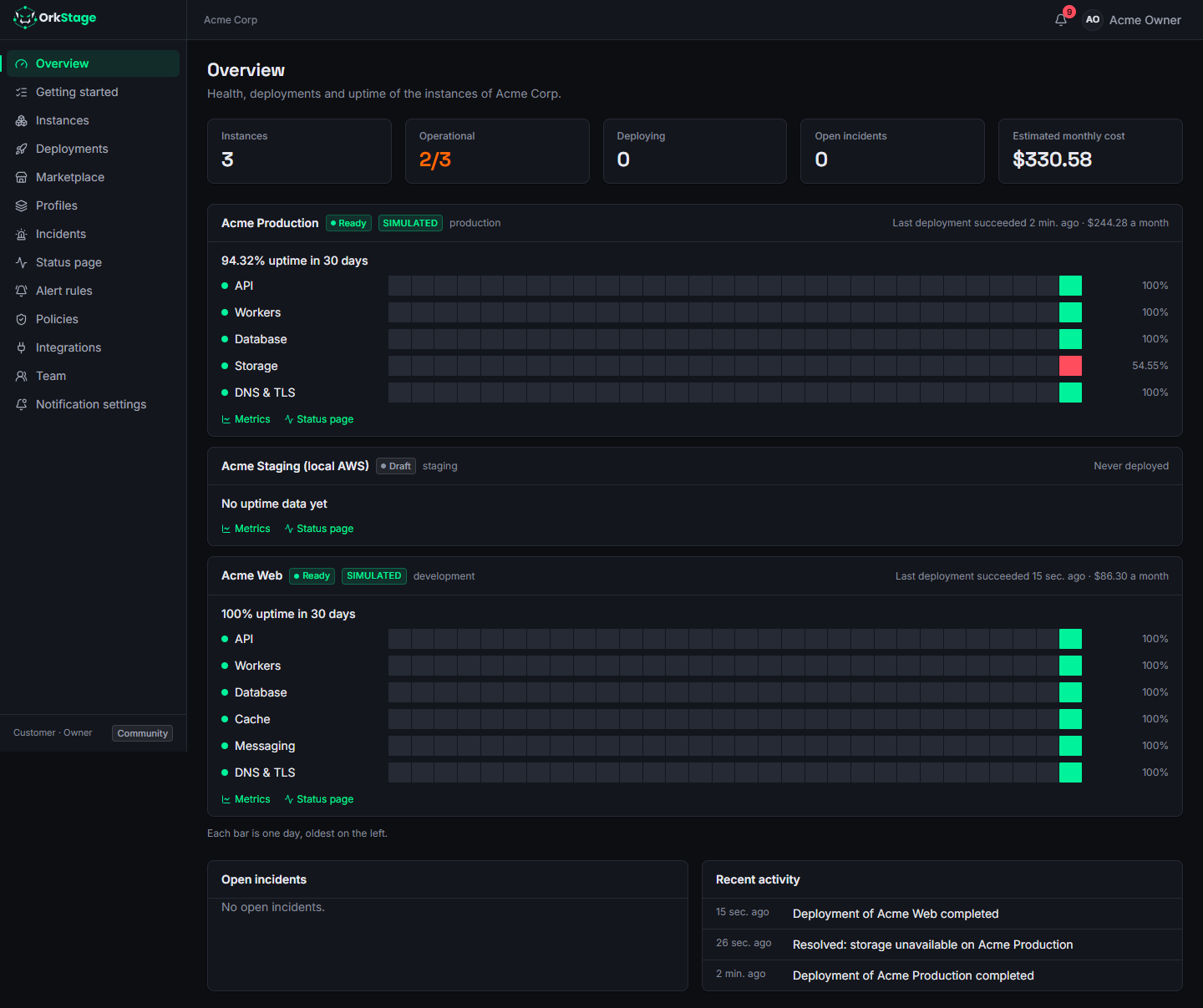
Uptime comes from the health checks of the last 30 days. A check counts as up when the resource
was healthy or degraded, and as down when it was unhealthy. Unknown results and planned
maintenance do not count either way. The same data is available at
GET /tenants/<tenantId>/overview.
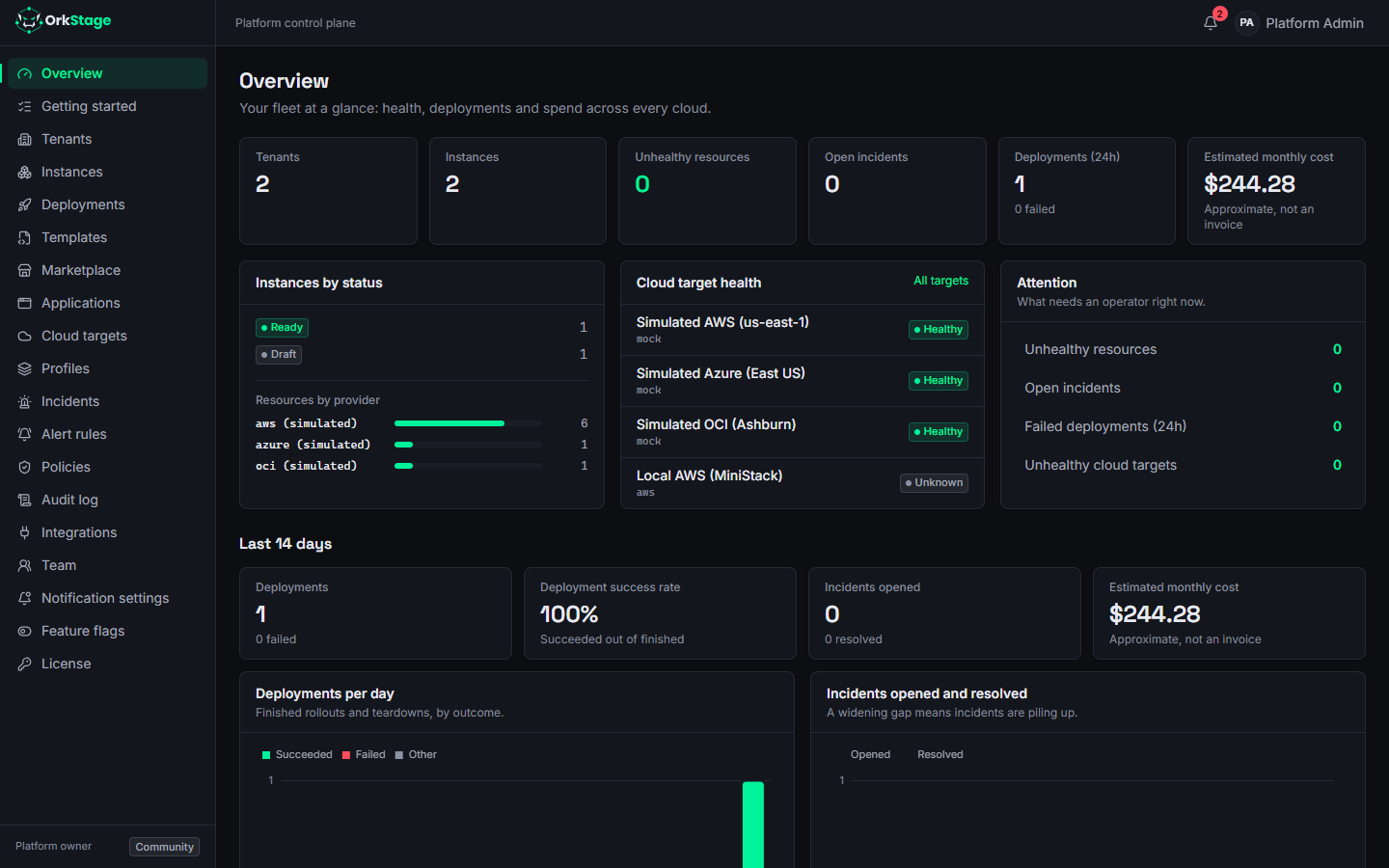
Platform staff see instance and deployment counts, health, open incidents and trends across all tenants. On a new installation the overview also shows an onboarding checklist:
- Connect or validate a cloud target.
- Pick or forge a template.
- Create an instance.
- Review plan & cost.
- Deploy and watch.
Instances
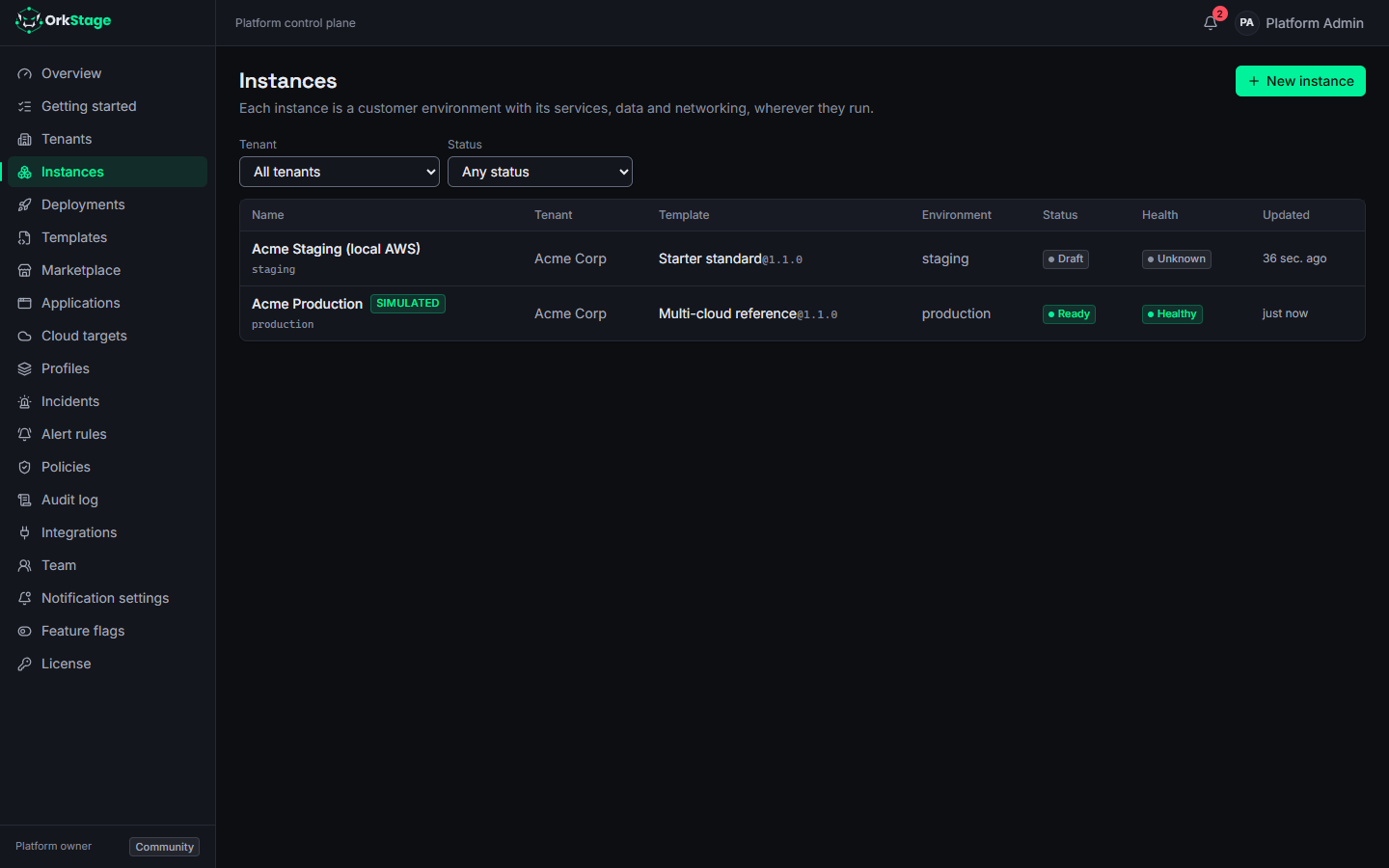
The instance list shows the status, health, environment, template version and tenant of each instance. An instance page has these tabs:
| Tab | What it shows |
|---|---|
| Overview | Details, variables, the topology diagram, resources with their placement, outputs and health |
| Plan & cost | A fresh preview: resolved resources, policies, connectivity, cost estimate and the diff |
| Deployments | Every deployment of this instance, with status and duration |
| Triggers | Provider actions you can run on the instance (triggers) |
| Domains | The platform subdomain and your custom domains |
| Logs | Recent log lines per resource (CloudWatch Logs on AWS, simulated elsewhere) |
| Metrics | CPU, memory, requests, latency and errors per resource |
The page header holds three actions: Deploy, Upgrade template and Destroy. Each one appears only when your role allows it.
Deployments and incidents
Deployments lists every deployment across the instances you can see. A deployment page shows the step list, a Gantt timeline, the plan and the event log. When they apply, it also shows Approve, Cancel and Retry.
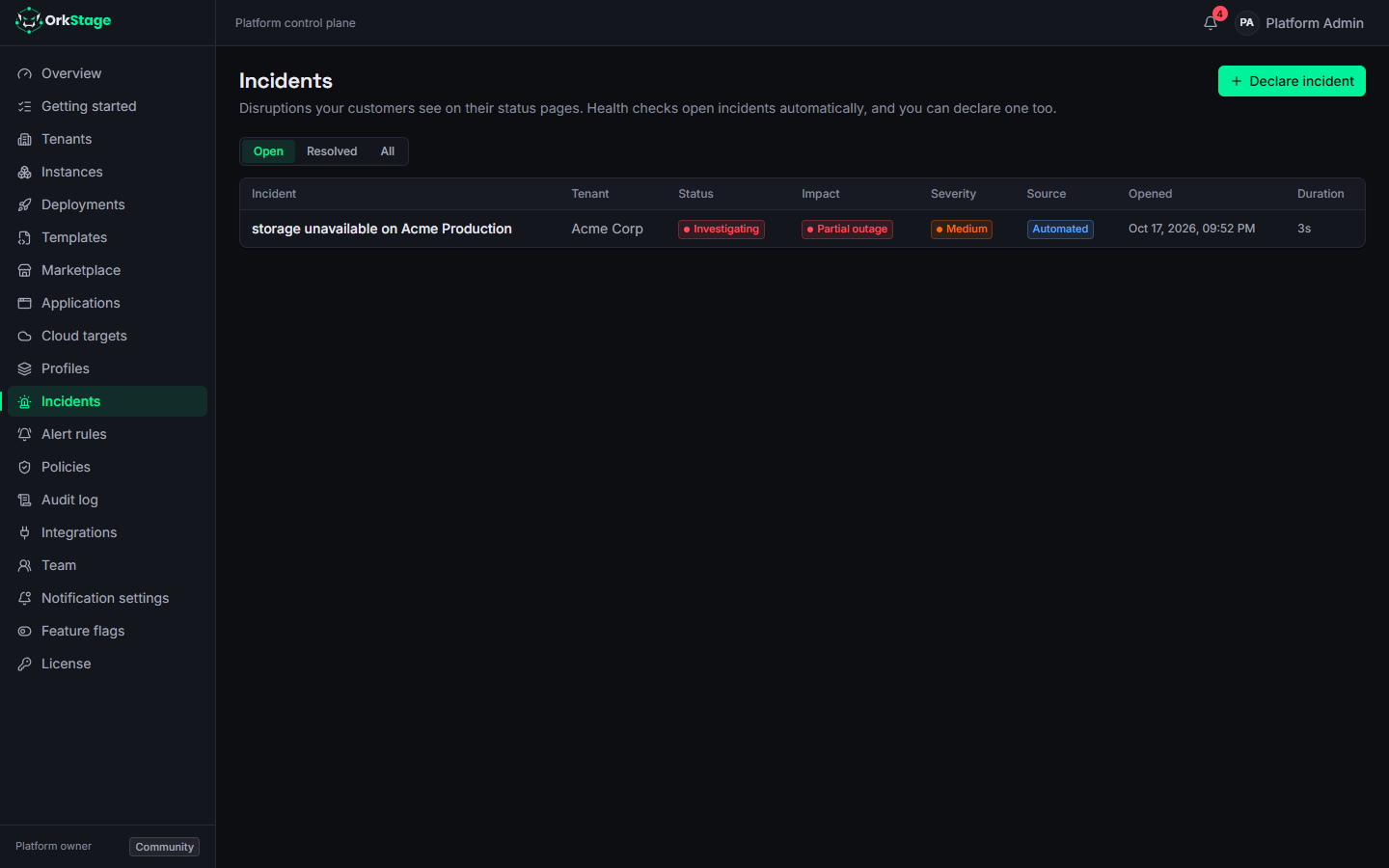
Incidents lists open and resolved incidents with their updates.
Theme
The console uses the dark theme by default. Switch to the light theme from the user menu. The console applies your choice before the first paint, so the page never flashes the wrong theme.